How to auto-post your blog articles to Facebook, Instagram, TikTok and YouTube
Published · 4 min read
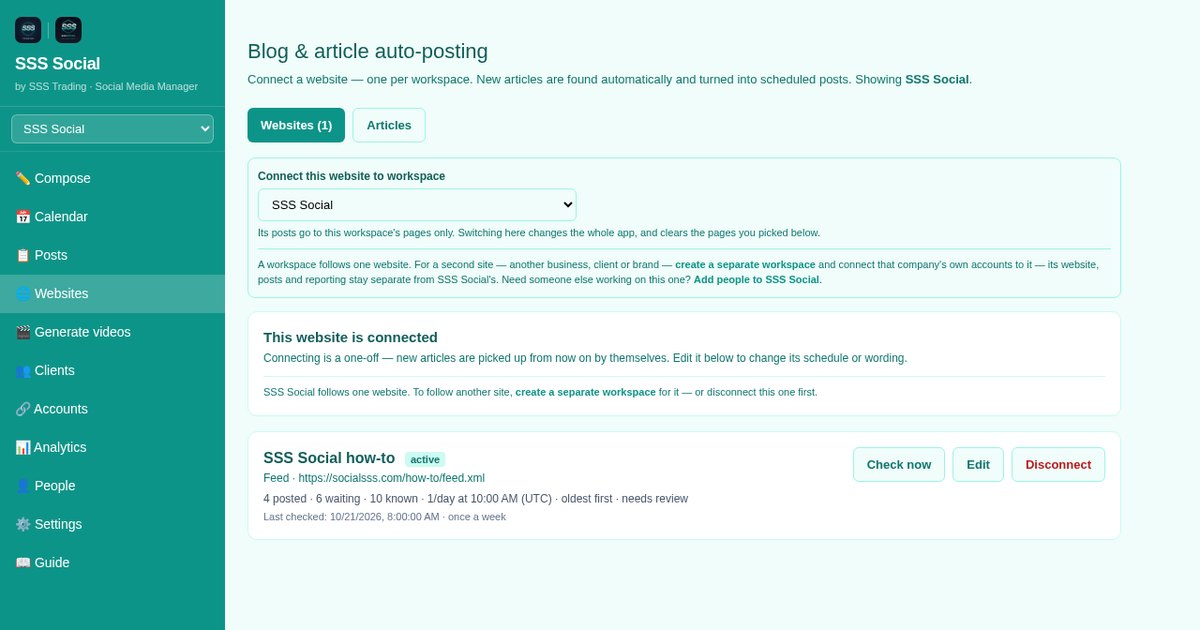
Connect your blog or news site under Websites and SSS Social finds each new article by itself and turns it into a post — headline, summary, the article’s own picture and a link — on the days and at the pace you choose.
Turn on video and every article also becomes a short generated video for Reels, TikTok and YouTube. Setting it up is one seven-step form.
Watch the walkthrough
Before you start
- A connected account to post to. A Facebook Page or Instagram can carry an article post; YouTube and TikTok need a video, which the video option makes for you.
- Your site’s address. An RSS or Atom feed is ideal, but a sitemap or a page that lists your articles works too.
- Articles with a picture post best — Instagram needs one. Most sites already set one for link previews (the og:image tag).
Step by step
Step 1: Enter your website
Open Websites and type the address of your blog or article page. SSS Social checks the site — it looks for a feed, then a sitemap, then the article links on the page — and previews the newest article it found. A workspace follows one website; for a second site, create another workspace.
Step 2: Choose which part of the site posts
Post everything on the website, or only one part of it, such as a single section or category. If the site publishes in more than one language, each language becomes its own post and you choose which languages to post.
Step 3: Choose where to post
Tick the connected Pages and accounts that should receive the posts. If nothing is connected yet you can still save the website — it stays paused, with your settings kept, until you connect an account.
 Accounts — every connected platform, with its own Connect or Disconnect button.
Step 4: Decide what each post says
By default a post carries the article’s headline and summary with a link. With the AI writing add-on, or your own AI key on a paid package, each article gets post wording written for it in a tone you describe in your own words. You can edit any post’s wording before it goes out.
Step 5: Set when to post
Choose the posting days, how many posts a day, and whether waiting articles go out newest first or oldest first. Posts are spread out on your calendar rather than sent all at once.
 The Calendar — a month of queued, published and failed posts.
Step 6: Pictures and video
Each post carries the article’s own picture. For an article without one, choose to post it anyway as text and a link, or to hold it until someone adds a picture. Turn on video and each article becomes a short video: for every destination choose the shape — portrait 9:16, landscape 16:9 or square 1:1 — and the length, a trailer under 90 seconds or a full video of the whole article, then a look and your brand colour. For TikTok choose who can see the videos, and for YouTube their privacy status; until you do, those two are skipped.
Step 7: Music, review and save
Choose the music — matched to each article’s tone, picked from the library, your own, or none — then check the summary and save. Review each post before it goes out is ticked by default, so posts wait for your approval; untick it to let them publish by themselves.
Step 8: Watch new articles arrive
New articles appear under the Articles tab and on your Calendar as they are found. Articles already on the site when you connect it are recorded but not posted — only articles published from then on go out automatically — and nothing is ever posted twice.
Tips
- Give every article a good share image (1200×630 works everywhere) and a clear meta description. That is exactly what the post uses.
- Publishing an RSS or Atom feed makes new articles show up fastest and most reliably.
- Keep review switched on for the first week, then let posts go out automatically once you trust the wording.
- Every destination and every language counts as one post against your allowance.
Frequently asked questions
Does my website need an RSS feed?
No. A feed is best, but SSS Social can also follow your sitemap, or read the article links on a page that lists your articles.
Will connecting my site post all my old articles?
No. Articles already on the site when you connect it are recorded, not posted. Only articles published from then on go out automatically.
What happens to an article without a picture?
You decide when you set the website up: post it anyway as text and a link, or hold it until someone adds a picture. Instagram skips articles without a picture or video either way.
Can articles be posted to YouTube and TikTok?
Yes, as videos. Turn on video for the website and each new article is made into a short video in the shape and length you chose for each destination.
The illustrated version is section 6 of the guide: Put your website on autopilot.
Get started
Create a free account, connect your blog, and let new articles post themselves.
Create your free account
SSS Social is operated by SSS Trading. Contact: admin@ssstrading.site