How to schedule social media posts with a calendar in SSS Social
Published · 3 min read
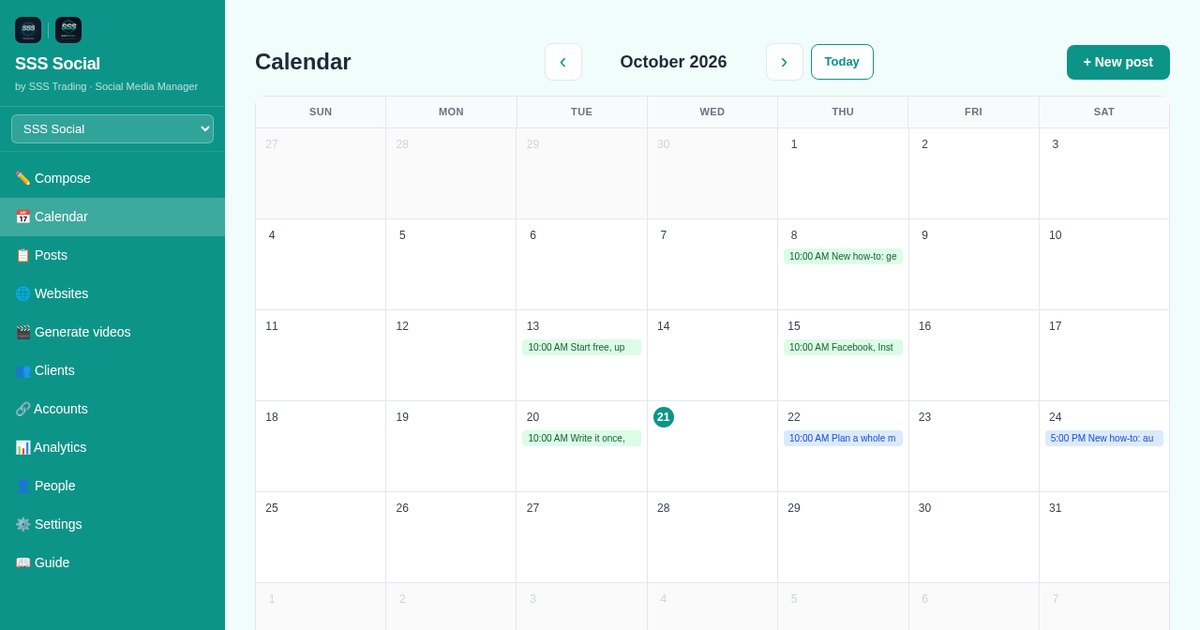
Scheduling in SSS Social takes one extra choice in Compose — a date and a time — and the post then waits on the Calendar until it goes out by itself.
From the Calendar you see a whole month of queued, published and failed posts at once, and you can change or cancel any scheduled post right up until it publishes. Here is how to plan a month ahead.
Watch the walkthrough
Before you start
- At least one connected account.
- A rough plan: which days you want to post on, and how often.
- Posts written, or at least their ideas — drafts can be finished and scheduled later.
Step by step
Step 1: Write the post
Open Compose and write the post as usual: format, destinations, caption and media. See how to publish one post to every channel for the details.
 Compose — format, caption, media and destinations on one screen.
Step 2: Choose a date and time
Instead of publishing now, pick a date and a time and schedule it. The post is saved with the status Scheduled and goes out by itself — nobody needs to be signed in.
Step 3: See it on the Calendar
Open Calendar. The month view shows everything queued, published and failed, so gaps and crowded days are obvious at a glance.
Step 4: Edit, reschedule or cancel
Open any scheduled post to change its wording or media, move it to another time, or cancel it — until the moment it publishes. On the Posts page you can also filter by Scheduled and edit, duplicate or delete posts from the list.
 Posts — every post with its status, and the allowance used this period.
Step 5: Let retries handle hiccups
If a platform has a temporary problem when a post goes out, SSS Social retries it up to three times before reporting it as failed. Permanent errors — a removed permission, a file the platform refuses — are reported straight away with the platform’s own reason, so you know what to fix.
Step 6: Save repeat formats
Save recurring formats as templates and hashtag sets as hashtag groups. A weekly post then takes seconds to queue instead of minutes.
Step 7: Keep an eye on the allowance
Scheduled posts count when they go out, not when you schedule them. A scheduled post that would go over your monthly allowance is held rather than dropped, and goes out when the allowance resets.
Tips
- Batch your planning: write a week or a month of posts in one sitting and schedule them all.
- Posts from a connected website are planned onto the same calendar, so you see your own posts and your blog’s together.
- Use the Failed filter on the Posts page after a busy week to catch anything that needs a fix.
Frequently asked questions
Can I edit a post after scheduling it?
Yes. Open it from the Calendar or the Posts page and change the wording, media or time, or cancel it, at any point until it publishes.
What happens if a scheduled post fails?
Temporary platform errors are retried up to three times. If the post still cannot be published, it is marked as failed with the platform’s reason, and the other destinations are not affected.
Do scheduled posts count against my allowance when I schedule them?
No. A post counts when it goes out, once for each destination it reaches. A delivery that fails costs nothing.
The illustrated version is section 5 of the guide: Plan with the calendar.
Get started
Create a free account and schedule your next month of posts in one sitting.
Create your free account
SSS Social is operated by SSS Trading. Contact: admin@ssstrading.site