How to publish one post to Facebook, Instagram, TikTok and YouTube at once
Published · 3 min read
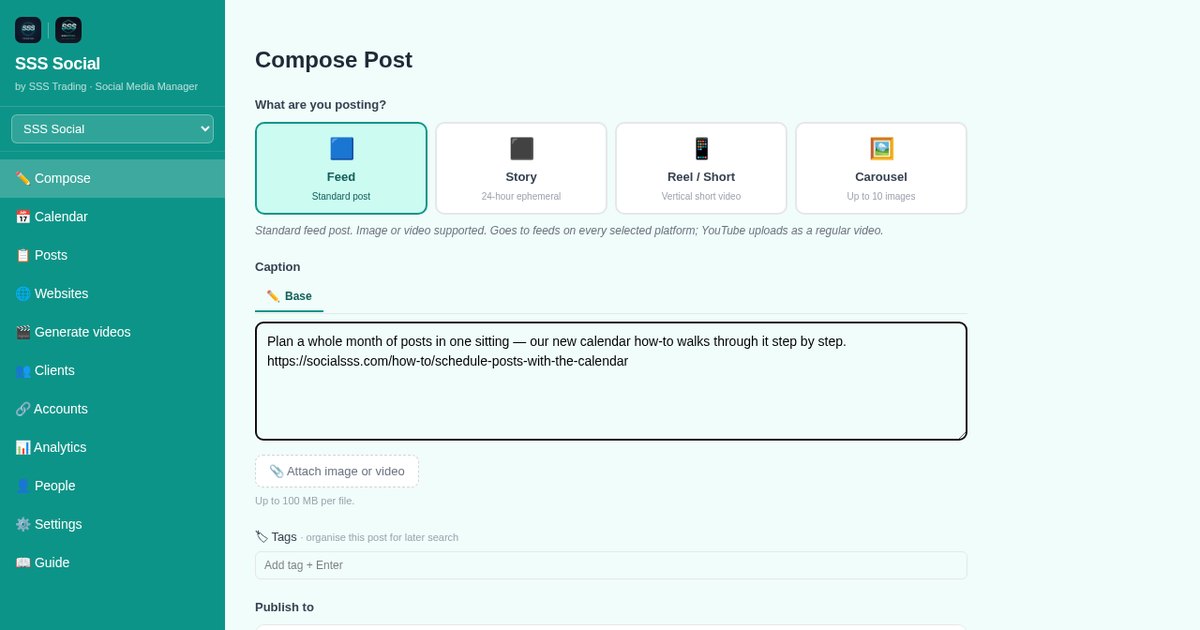
In SSS Social you write a post once in Compose, tick the accounts it should go to, and publish it to all of them in one go — or schedule it for later.
Each platform’s media rules are checked before you can submit, and each account reports its own success or failure afterwards, so nothing fails silently. Here is the whole flow, from format to results.
Watch the walkthrough
Before you start
- At least one connected account — see how to connect your social accounts.
- Your caption, and any photos or video. YouTube and TikTok need a video; a short vertical video suits Reels, Shorts and TikTok alike.
- For TikTok and YouTube, a decision about who should be able to see the post.
Step by step
Step 1: Open Compose and choose a format
Open Compose. Choose the format at the top: Feed (a standard post), Story (24 hours, Facebook and Instagram), Reel / Short (vertical short video) or Carousel (up to 10 images). The format decides which platforms can carry the post.
Step 2: Pick the destinations
Tick the connected accounts the post goes to. A Reel / Short with a vertical video, for example, can go to a Facebook Page, Instagram, YouTube and TikTok at the same time.
Step 3: Write the caption and add media
Write the caption and attach photos or a video. Media is checked against every chosen platform’s rules before you can submit, so a video TikTok would reject is caught here rather than after it fails. Saved templates and hashtag groups can be dropped in from the composer.
Step 4: Adjust the wording per platform
Need a different caption on one channel — shorter for TikTok, more hashtags for Instagram? Expand that platform’s own caption field and override just that one. Every other destination keeps the main caption.
Step 5: Fill in the platform extras
Extra fields appear only where a platform needs them: the YouTube title, tags, category and made-for-kids setting; the Instagram location; TikTok’s privacy level, comment, duet and stitch settings and its disclosures.
Step 6: Publish now or schedule
Publish straight away, or pick a date and time to schedule it. Scheduled posts wait on the Calendar and can be edited until they go out — see how to schedule posts with the calendar.
 The Calendar — a month of queued, published and failed posts.
Step 7: Check the results
Open Posts. Every post shows its status — Draft, Pending, Scheduled, Published, Partial or Failed — and every destination reports its own result, with a link to the live post where it published. A post that reached some accounts but not others shows as Partial, so one failure never hides behind the others.
 Posts — every post with its status, and the allowance used this period.
Tips
- Not ready? Save a draft. Drafts never count against your allowance, and you can finish them later from the Posts page.
- Use Duplicate on the Posts page to start a new post from one that worked before.
- Each destination counts as one post against your allowance, and a delivery that fails costs nothing.
Frequently asked questions
Can one post go to Facebook, Instagram, TikTok and YouTube together?
Yes, as long as the format suits each platform. A vertical video posted as a Reel / Short can go to all four; pick the accounts and publish once.
What happens if one platform rejects my post?
The other destinations still publish. The failing account shows the platform’s own reason, and temporary platform errors are retried automatically, up to three times, before a post is reported as failed.
Does a draft count against my allowance?
No. Only posts that go out count, once for each destination they reach.
The illustrated version is section 4 of the guide: Publish your first post.
Get started
Create your free account and publish your first post to every channel at once.
Create your free account
SSS Social is operated by SSS Trading. Contact: admin@ssstrading.site