How to connect Facebook, Instagram, TikTok and YouTube to SSS Social
Published · 3 min read
To publish from SSS Social you connect each social account once, from the Accounts page, and approve the connection on the platform itself — SSS Social never sees your passwords.
Facebook Pages, Instagram Business and Creator accounts, TikTok accounts and YouTube channels can all be connected today. This article covers each one and what to check before you start.
Watch the walkthrough
Before you start
- A role on the Facebook Page you want to post to that lets you manage it. Posting needs a Page; a personal profile cannot be posted to.
- For Instagram: a Business or Creator account linked to that Facebook Page. Make the link in Instagram’s own settings first.
- The login for your TikTok account, and the Google account that owns your YouTube channel.
- A workspace to connect them to — see how to create your account and workspace.
Step by step
Step 1: Open Accounts
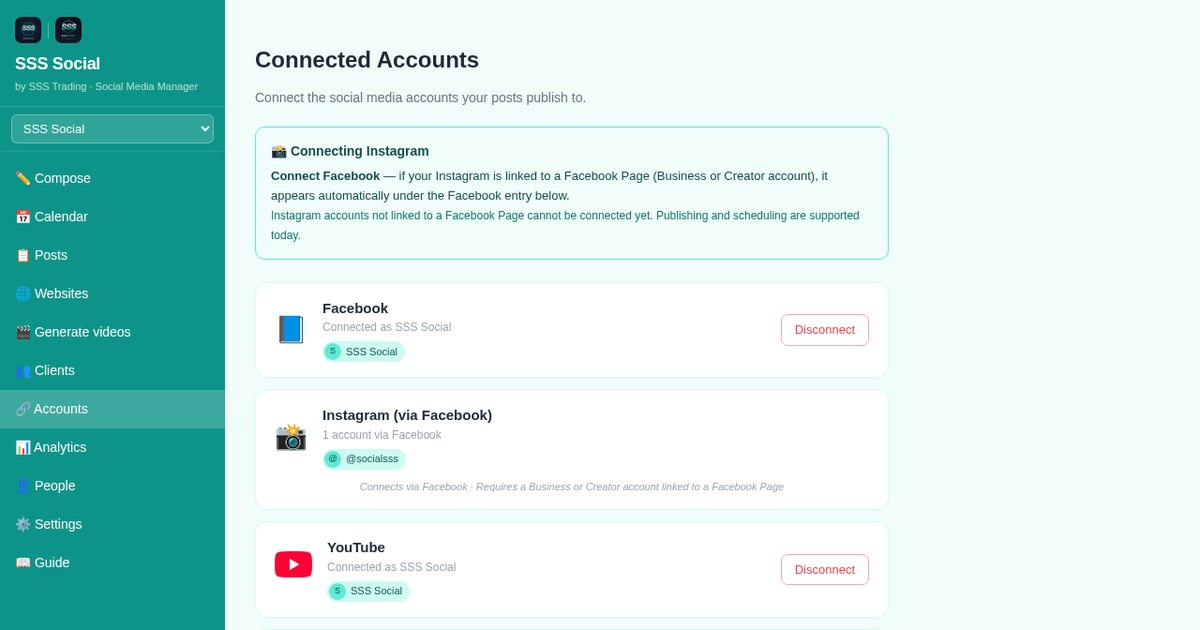
Open Accounts from the sidebar, or from the ☰ menu on a phone. Every platform you can connect has its own Connect button. Accounts belong to the workspace you are in, so switch to the right workspace first if you run several brands.
 Accounts — every connected platform, with its own Connect or Disconnect button.
Step 2: Connect Facebook and choose your Pages
Press Connect Facebook and sign in on Facebook. Facebook asks which Pages SSS Social may manage and what it may do with them. Approve, then choose the Pages you want in this workspace.
Step 3: Let Instagram follow its Page
Instagram Business and Creator accounts connect through the Facebook Page they are linked to, so once that Page is connected its Instagram account appears automatically. If it does not, link the two in Instagram’s settings and connect again.
Step 4: Connect TikTok
Press Connect for TikTok and approve on TikTok. Direct posting is approved for SSS Social, so posts go straight to your profile. When you publish, the composer offers exactly the privacy levels TikTok reports for your account, with none pre-selected, plus TikTok’s commercial-content disclosure and music usage confirmation.
Step 5: Connect YouTube
Press Connect for YouTube and sign in with the Google account that owns the channel. Videos then publish with the title, tags, category and made-for-kids setting you give them in the composer.
Step 6: Check the connection in Compose
Connected accounts are listed on the Accounts page and appear as destinations in Compose. If a platform later asks you to sign in again — after a password change, for example — reconnect from the same page.
 Compose — format, caption, media and destinations on one screen.
Tips
- Connect only the Pages a workspace actually posts for. An agency should keep each client’s accounts in that client’s own workspace.
- X, LinkedIn, Threads and Pinterest are not available yet, so they have no Connect button. A button appears on the Accounts page when a network becomes available.
- You can remove SSS Social’s access at any time, from the Accounts page or from the platform’s own app settings.
Frequently asked questions
Does SSS Social see my Facebook, TikTok or Google password?
No. You sign in on the platform itself and approve access there. SSS Social receives only the access you granted, and stores it encrypted.
Why can’t I post to my personal Facebook profile?
Facebook only lets apps publish to Pages, not to personal profiles. Create a Page for your business, or use one you already manage.
Which TikTok privacy setting will my post use?
The one you choose. The composer lists the options TikTok reports for your account and never picks one for you.
Can I connect X, LinkedIn, Threads or Pinterest?
Not yet. Those networks have no Connect button today; one will appear on the Accounts page when a network becomes available.
The illustrated version is section 3 of the guide: Connect your social accounts.
Get started
Create a free account and connect your first Page or channel in a few clicks.
Create your free account
SSS Social is operated by SSS Trading. Contact: admin@ssstrading.site