How to turn an article or product page into a short video
Published · 3 min read
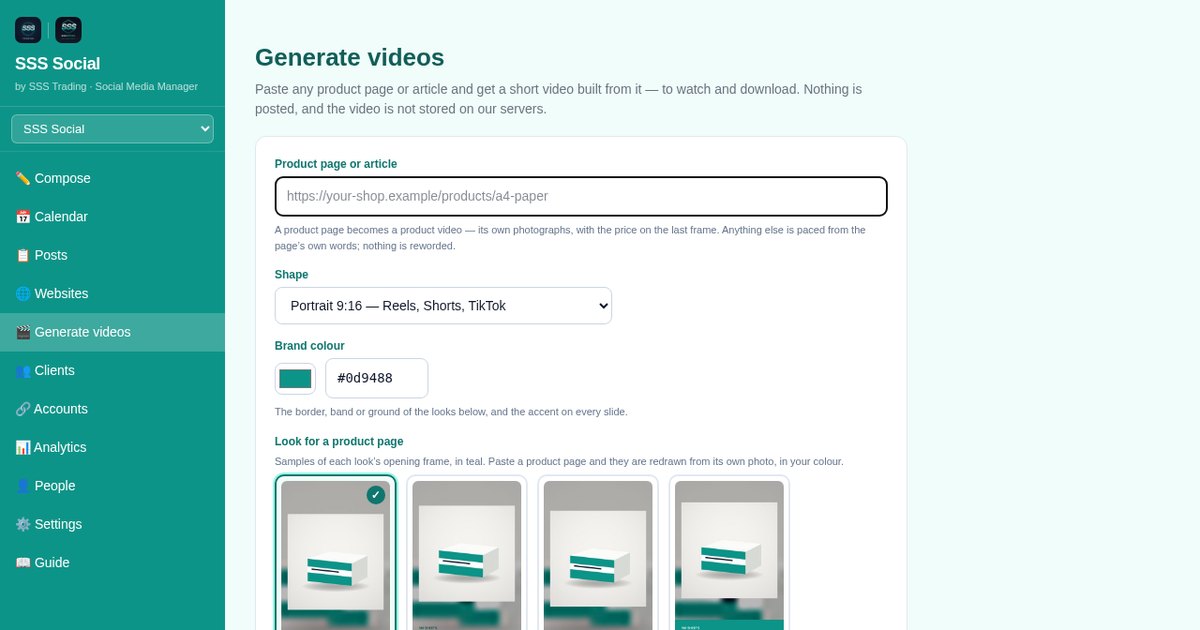
Paste the address of an article or a product page into Generate videos and SSS Social makes a short video from it — the article’s story, or the product’s photos and price — in the shape, length and look you choose.
You watch it in the browser and download it; to post it, you upload the file in Compose. Here is each choice along the way.
Watch the walkthrough
Before you start
- The address of a public article or product page.
- A video allowance. Paid packages include one video a month; on the free package, add the video add-on first.
- Your brand colour as a hex code, such as #0d9488, if you want the video in your colours.
Step by step
Step 1: Open Generate videos
Open Generate videos from the sidebar, or from the ☰ menu on a phone.
Step 2: Paste the page address
Paste the address of a product page or an article. SSS Social reads the page, works out whether it is an article or a product, and reads its tone.
Step 3: Choose the shape
Pick Portrait 9:16 for Reels, Shorts and TikTok, Landscape 16:9 for YouTube, or Square 1:1 for feeds.
Step 4: Choose the length
For an article, choose a Trailer — under 90 seconds — or a Full video that covers the whole article. A product video is built from the product’s photos, with the price on the last frame.
Step 5: Choose a look, colour and music
Pick a look for the video, set your brand colour, and choose the music: suggested to match the page’s tone, chosen from the library, your own, or none at all.
Step 6: Generate, watch and download
Make the video, watch it, and download it. The video is not stored on our servers, so download it before you leave the page. Nothing is posted, and your history keeps no record of it.
Step 7: Post it from Compose
To publish the video, open Compose, choose Reel / Short (or Feed for a landscape YouTube video), upload the file and pick your accounts — see how to publish one post to every channel.
 Compose — format, caption, media and destinations on one screen.
Step 8: Or let your website do it
For a steady stream, turn on video for your website under Websites and every new article or product becomes a video automatically — see how to auto-post your blog articles.
 Websites — where a blog or shop is connected.
Tips
- Articles with clear headings make better videos: the headings give the video its structure.
- Use landscape for YouTube and portrait everywhere else; square suits feed posts.
- With your own AI key on a paid package, your video allowance is ten times larger.
Frequently asked questions
How many videos can I make?
Each video uses one unit of your package’s video allowance or of a video add-on. Paid packages include one video a month, the free package includes none, and the video add-on adds more on any package.
Are generated videos saved in my account?
No. The video is not stored on our servers. Download it before you leave the page, then upload it in Compose to post it.
Can it make a video from any website?
From any public article or product page. A page that only draws its text in the browser may give a shorter video, built from the page’s own summary.
The illustrated version is section 8 of the guide: Generate videos on demand.
Get started
Create a free account and turn your next article into a video.
Create your free account
SSS Social is operated by SSS Trading. Contact: admin@ssstrading.site